
|
|
Peeyush Maurya's Technical Guide for installing Virtual Network Computing(VNC) on Windows
Requires VNC full installed on both machine
Steps for connecting :
1. In Server PC start VNC server
starting VNC server : Go to start > Programs > RealVNC> Run VNC Server
(If VNC server is running you will see VNC icon near the clock in taskbar)

2. In Delhi PC start "Listening VNC Viewer"
starting VNC listener : Go to start > Programs > RealVNC> VNC Viewer > Run Listening VNC Viewer
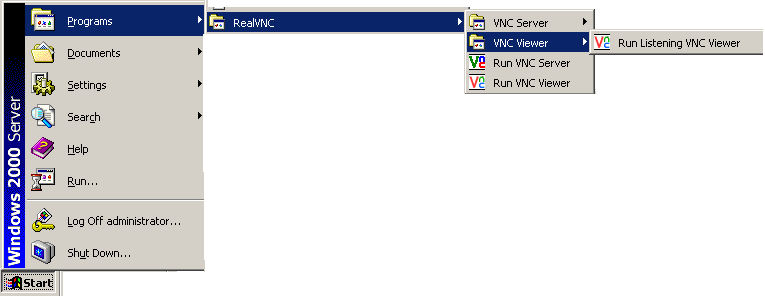
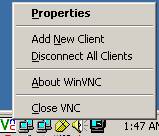
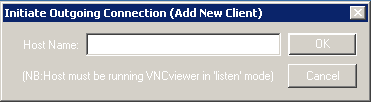
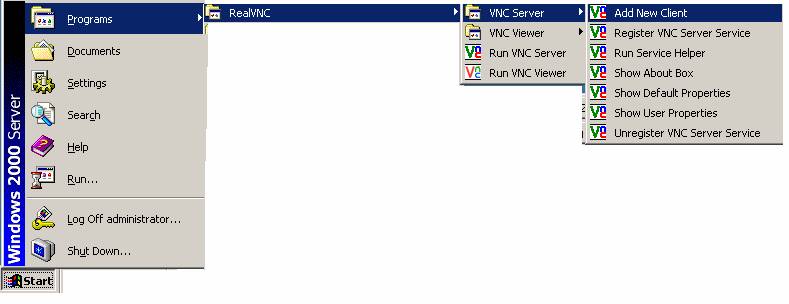
3. Server PC : right click on VNC server icon > Add New Client > 203.195.151.89 (Delhi PC IP address)
OR
This will start Remote Desktop of Server PC in Delhi PC.
Once Connection is made VNC's icon on the taskbar will change

Thanks,
Peeyush Maurya
For more on Virtual Network Computing (VNC) read here REALVNC